Motion Analyzer
Motion Analyzer creates meaningful motion signals from Animation Poses and detects timing for Automatic Six-Stage Motion. Tune it only when using motion-driven Responses; assets that use only gameplay Signals do not require extensive tuning.
Analysis Targets
- Jump / Falling / Landing
- Speed Drop / Speed Burst
- Direction Change
- Acceleration
- Per-Region motion and six-stage Motion Phase
The default motion input is Animation Motion Relative to Skeleton Root. It therefore focuses on relative joint movement rather than Actor movement or Root Motion. Full Final Pose-based measurement can be selected when needed.
Sensitivity
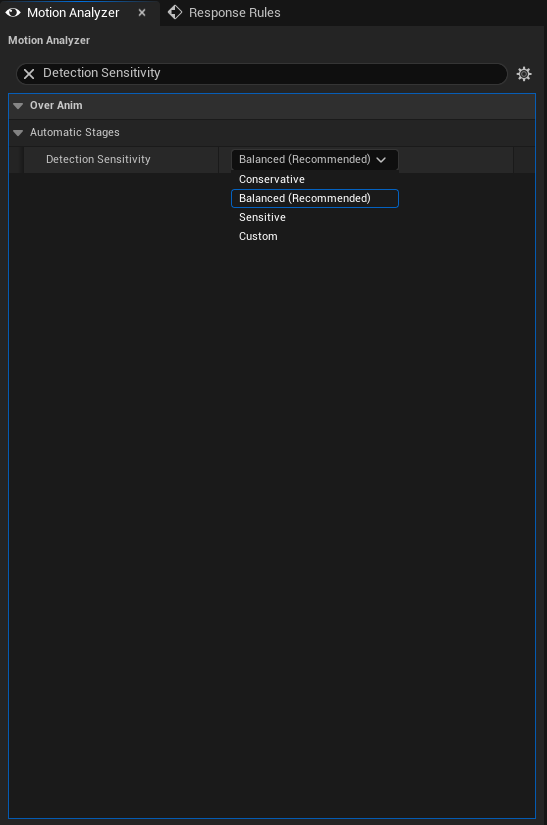
Choose from Conservative, Balanced, Sensitive, and Custom.
- Start by previewing with
Balanced. - Try
Sensitiveif short, fast actions are missed. - Reduce sensitivity to
Conservativeif the analyzer reacts to jitter or noise. - Use
Customthresholds only when the motion characteristics of your project's input are well understood.
Grounding and Action Boundaries
When CharacterMovement is present, it is preferred for Grounded detection. Otherwise, a ground probe and vertical velocity are used together. Montage start/end and Section transitions can be used as boundaries for a new action.
Analyze Automatic Stages determines the analyzer's active scope.
| Value | Behavior |
|---|---|
Continuous Animation Motion |
Analyzes every final animation pose. Suitable for locomotion and continuous secondary motion. |
Only During Montage or Explicit Action |
Analyzes only inside an explicit window opened by a Montage action boundary or Start New Automatic Motion Action. Suitable for attack-only assets. |
Automatic (Legacy Compatibility) |
A compatibility value that preserves Montage-boundary behavior for older assets. Explicitly select one of the two values above for new assets. |
When Use Montage Action Boundaries is enabled, Montage start opens a new cycle. An interrupted Montage closes immediately at blend-out, while a normal blend-out continues analysis through Montage completion to preserve Recoil and Settle motion. Treat Montage Parts as Separate Actions opens a new action not only when the Section changes, but also when the embedded Animation Sequence changes within the Montage.
Rebase On Anim State Transitions is enabled by default. It automatically rebases pose derivatives during Anim Blueprint state crossfades, so you do not need to call Start New Automatic Motion Action for every ordinary State Machine transition. Use this Blueprint/C++ function when gameplay must explicitly open a new action boundary. Use Cancel Automatic Motion Action to close and re-arm the current action.
Starting Pose Return Tolerance requires root-relative Region motion to return near the starting pose before closing the cycle. A value of 1 effectively disables the positional-return guard.
Region Routing and Authored Timing
Each Bone Group's Action Group, Analyze Animations, Allowed Animations, and Analysis Method determine which Region receives the automatic stage. See Bone Groups and Regions for detailed authoring rules.
When a continuous Stage Curve or OverAnim Motion Stage Marker is used, authored timing takes precedence over automatic analysis. The final priority is Authored Stage Curve > Motion Stage Marker > automatic analysis.
Connecting to Responses
Changing Motion Analyzer values does not automatically retarget existing Rules to motion Signals. In Response Rules, explicitly configure the desired Signal and Motion Only or Automatic Six-Stage Motion settings.
Automatic six-stage motion is meaningful only when bEnableMotionSignals, bEnableRegionMotionSignals, and bEnableRegionMotionPhaseSignal are all enabled. See Motion · Simulation Types for the public types used by these settings.