Bone Groups and Regions
A Bone Group defines a Region—the deformation scope in OverAnim. Each Region has a unique name, an explicit bone list, hierarchy expansion settings, and a module stack.
Creating a Bone Group
-
Add a group in
Bone Groupsor rename the default group.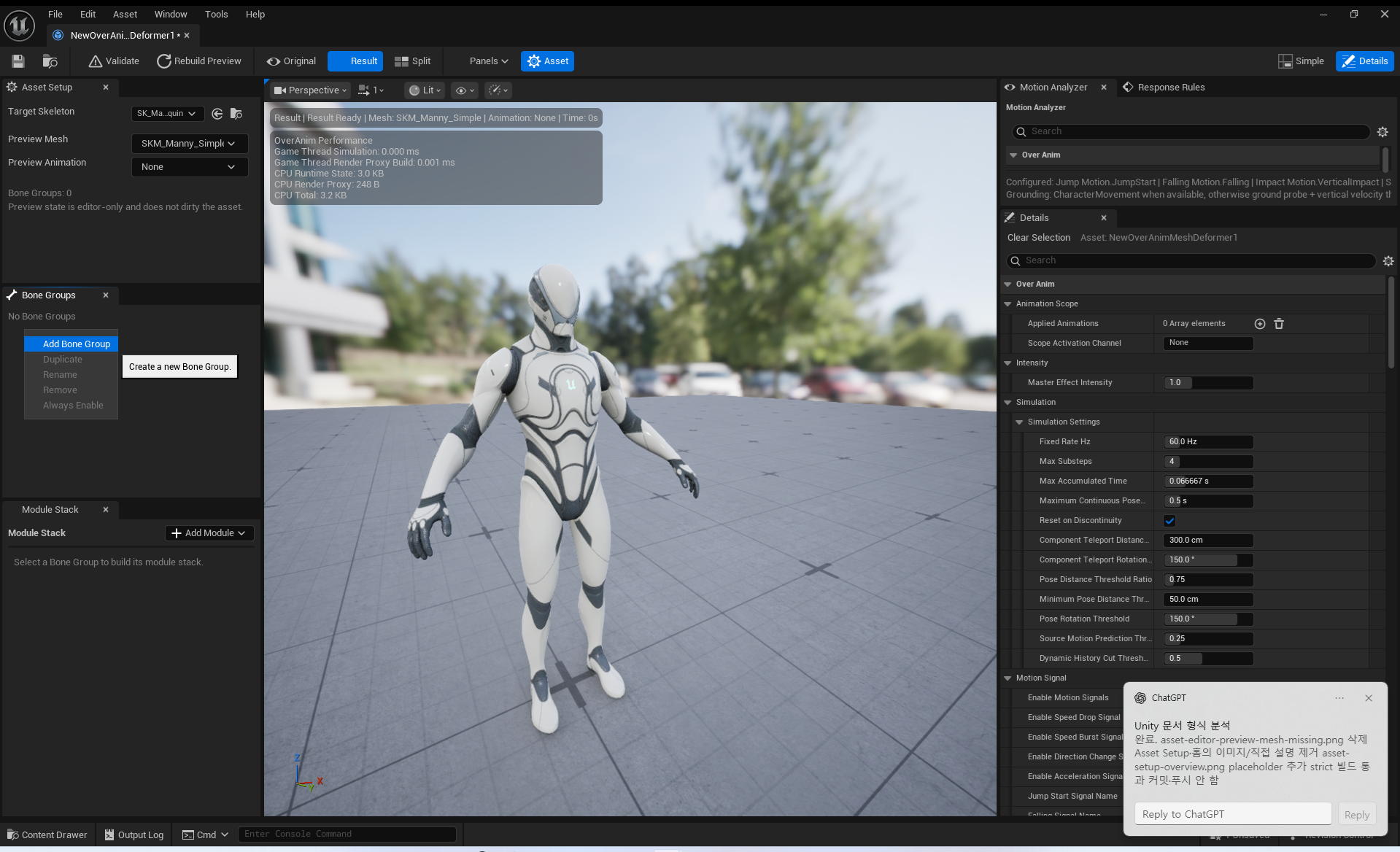
-
Open
Edit Boneson the group row.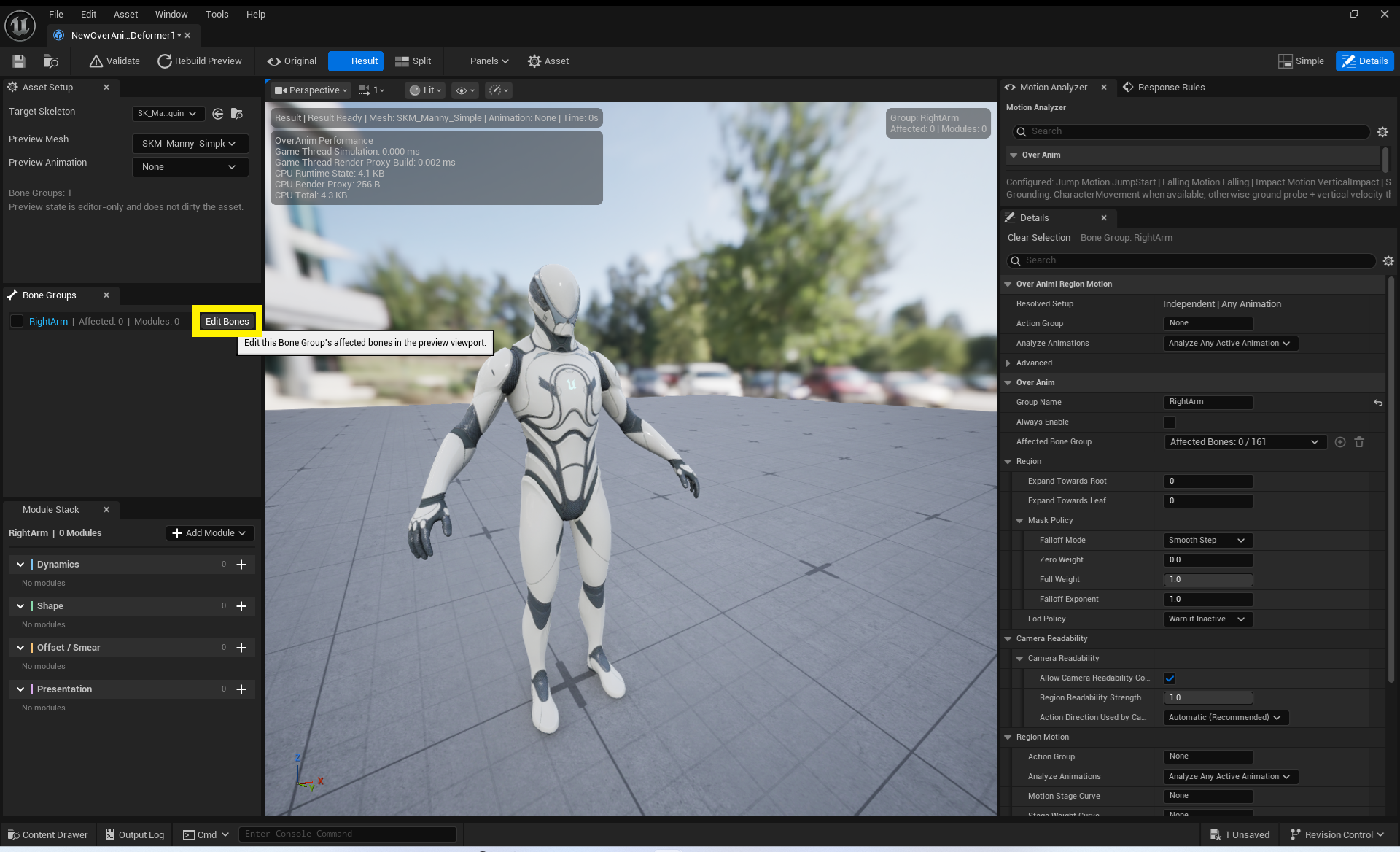
-
Select the bones to include in the Region.
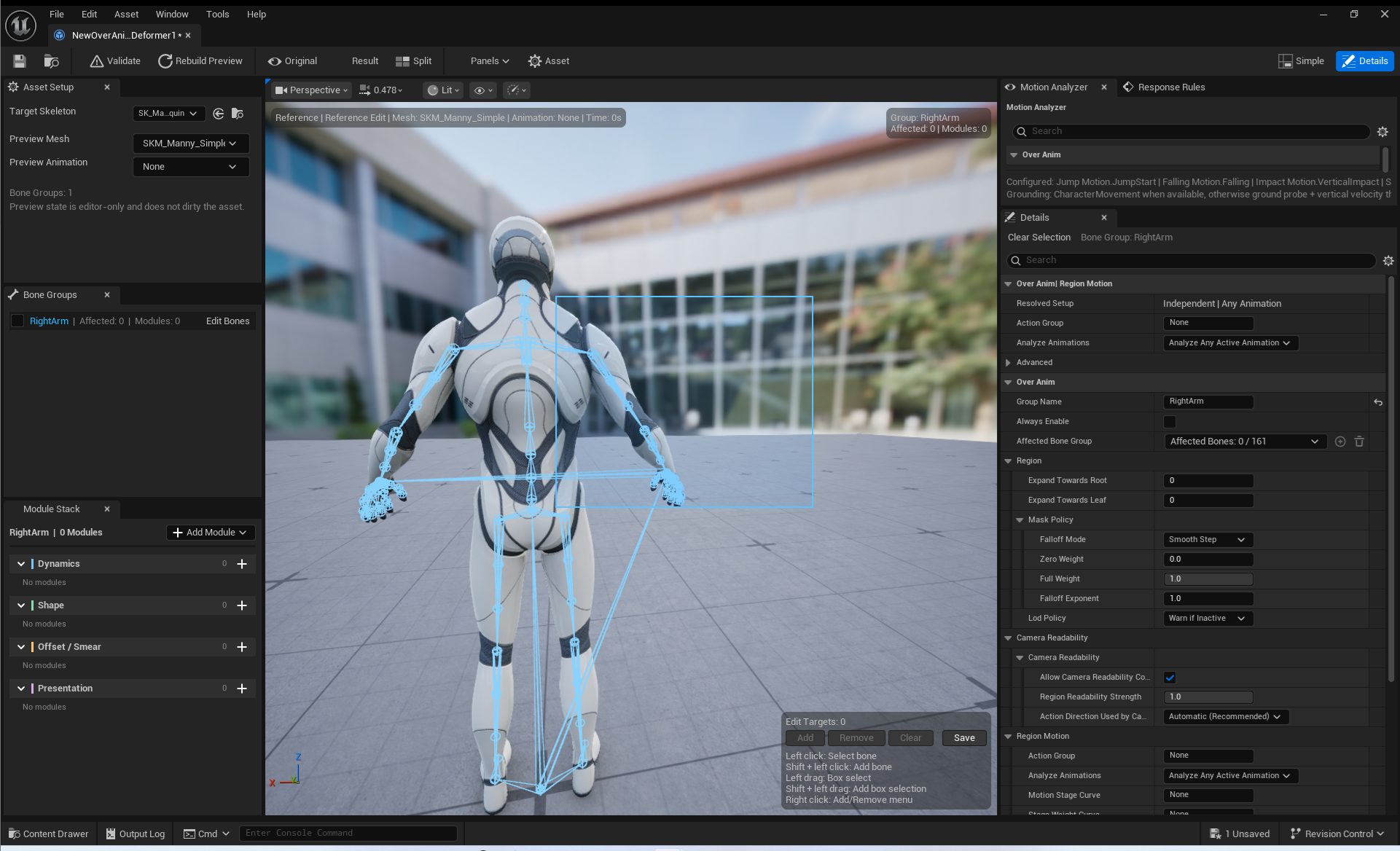
-
Click
Saveto apply the selection.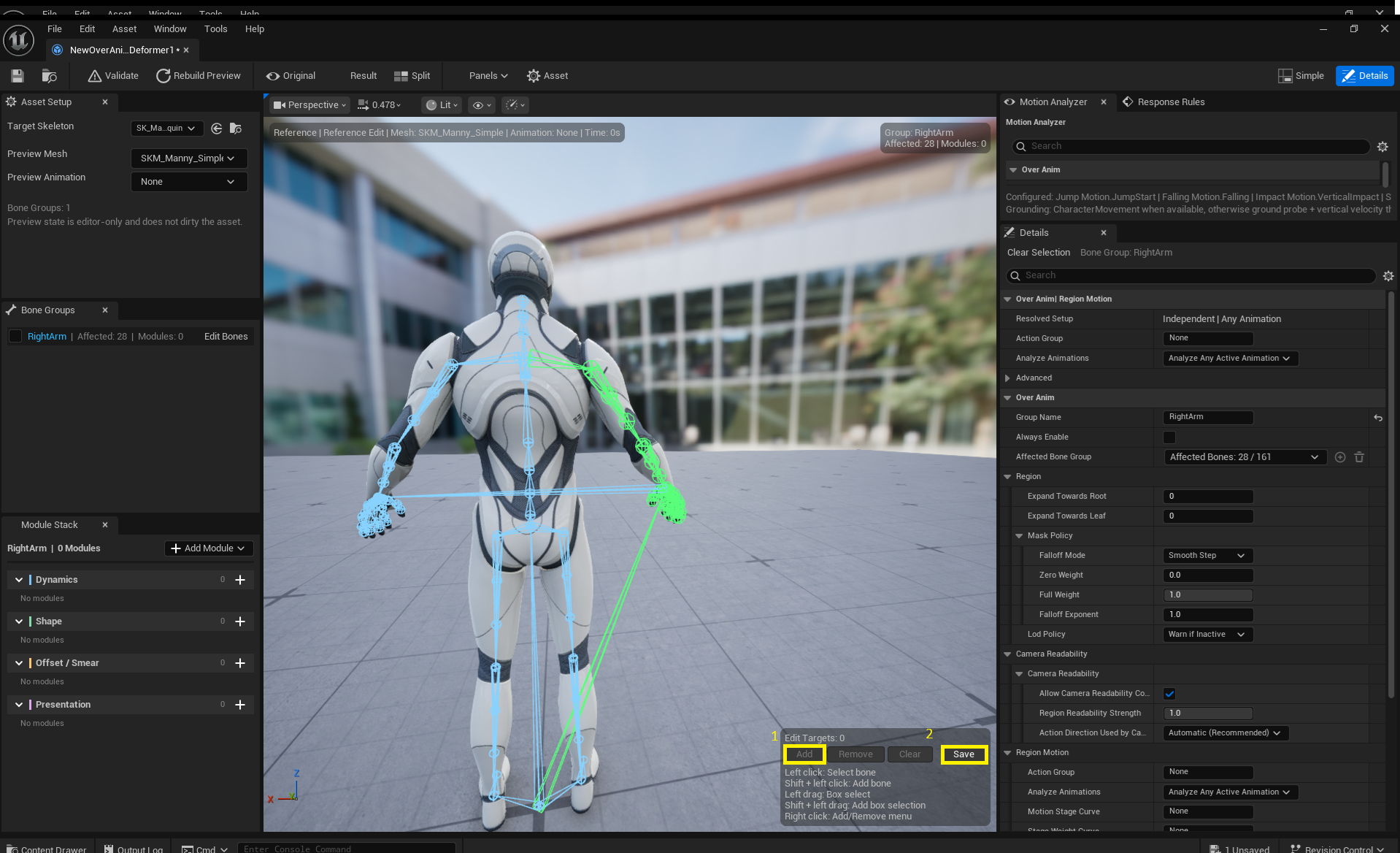
The basic controls in Edit Bones are:
- Left-click: Select a bone
Shift+ left-click: Add a bone to the selection- Drag: Box select
- Right-click: Add / Remove
Save: Apply the current selection to the group
Bone Masks and Hierarchy Expansion
| Property | Purpose |
|---|---|
Affected Bones |
Bones explicitly included in the Region. |
Expand Toward Root |
Expands the scope from selected bones toward their parents. |
Expand Toward Leaves |
Expands the scope from selected bones toward their children. -1 includes all descendants and should only be used intentionally. |
Mask Policy |
Determines how per-bone weights transition from 0 to Full Weight within the Region. |
LOD Policy |
Determines whether missing Region bones at a target LOD are allowed, warned about, or required. |
In Mask Policy, Zero Weight must be less than Full Weight. Falloff Mode can be Linear, SmoothStep, or Power; with Power, Falloff Exponent can make the curve more pronounced.
Always Enable
Enabling Always Enable on a group row keeps that Region active even without an OverAnim Notify. This is useful for checking the baseline deformation in Preview, but account for runtime cost and intent, and enable it only on Regions that need it.
Region Motion and Automatic Stage
OverAnim | Region Motion determines how a Region analyzes Automatic Six-Stage Motion and shares it with other Regions.
| Property | Purpose |
|---|---|
Action Group |
Groups Regions participating in the same action. If empty, the Region is analyzed independently. |
Analyze Animations |
Chooses whether to analyze all active Animations, analyze only selected Animations, or disable Automatic Stage analysis. |
Allowed Animations |
Animations that can drive this Region under Only Selected Animations. Each entry must also be present in the Asset's Applied Animations. |
Authored Stage Curve |
An optional six-stage curve. The integer portion is the Stage, and the fractional portion is progress through that Stage. |
Authored Curve Blend Weight |
An optional companion curve used to remove the animation blend weight applied to the Stage Curve. It cannot be used without a Stage Curve. |
Analysis Method |
Selects Primary Chain (Recommended) or All Affected Bones. |
Fixed Analysis Bone |
An optional single reference bone that replaces automatic analysis. If empty, Analysis Method resolves the reference. |
Regions using Analyze Any Active Animation in the same Action Group compete using motion evidence from the same moment, and one output Region is selected. Regions using Only Selected Animations share a single detected Stage when the currently playing Animation matches their allow list.
Primary Chain uses a connected parent-child chain among the explicit Affected Bones and excludes helper branches from analysis. If there are fewer than two connected explicit bones, validation emits a warning and automatic primary-chain analysis cannot be used. Hierarchy-expanded bones and helper branches can still participate in deformation.
Stage timing uses the following priority:
Authored Stage CurveOverAnim Motion Stage Marker- Selected Animation routing or automatic motion analysis
Check the Resolved Analysis and Phase Timing Priority rows in Details to see the current resolution.
Camera Readability
Each Region includes View Stylization settings under Camera Readability. You can configure per-Region permission, intensity, and the Action Axis source. These values work with the global and Shot Override settings described in Camera Safety · Readability.
Names and IDs
A Region's GroupId and GroupName must be valid and unique. After renaming one, also check any Region name or ID references in Response Rules, Notifies, and Gameplay Code.