Animation Notifies
OverAnim provides four Notifies for use on the Animation Timeline. Keep Notify names and asset settings exactly as shown in English.
Creating Notifies and Connecting Bone Groups in the Asset Editor Timeline
With a Preview Animation assigned, use the Timeline at the bottom of the Asset Editor's Preview tab. Right-click an empty Notify Track area to open the Notify context menu, where you can create the following items at the clicked time. Right-clicking an existing Notify block opens that Notify's time, duration, and delete commands instead of creation commands.
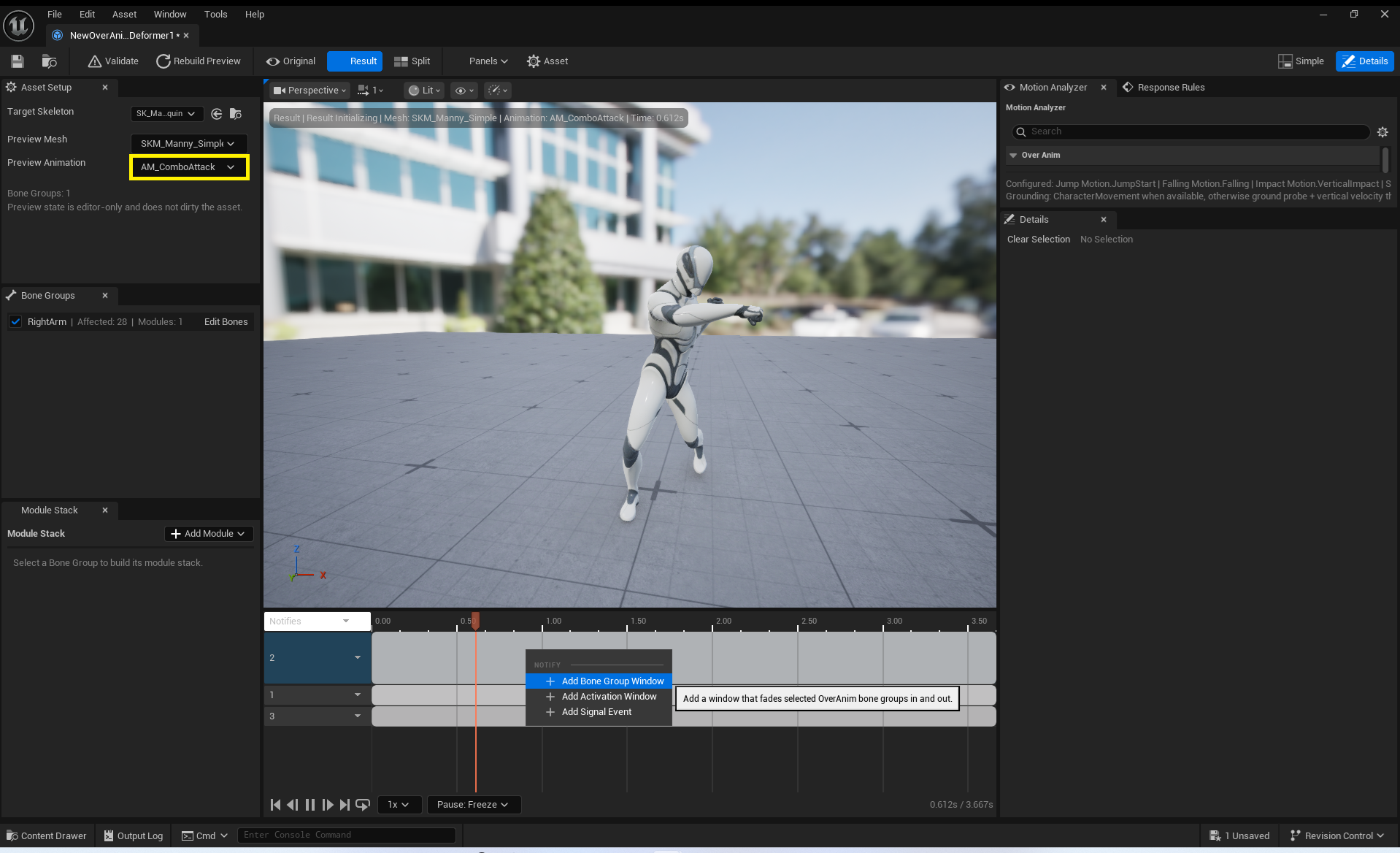
| Context Menu Item | Notify Created | Initial State |
|---|---|---|
Add Bone Group Window |
AnimNotifyState_OverAnimBoneGroupControl |
Creates a duration Notify with the asset currently open in the Asset Editor assigned to Target Deformer Asset. |
Add Activation Window |
AnimNotifyState_OverAnimActivationWindow |
Creates a duration Notify targeting the current asset. |
Add Signal Event |
AnimNotify_OverAnimSignal |
Creates a single-frame Notify targeting the current asset. |
Only the AnimNotifyState_OverAnimBoneGroupControl created by Add Bone Group Window can be connected to a Bone Group. Drag a row from the Asset Editor's Bone Groups list onto the corresponding Notify block in the Timeline. The Group's FGuid is added to Bone Group Ids. Dropping an already included Group does not add a duplicate ID.
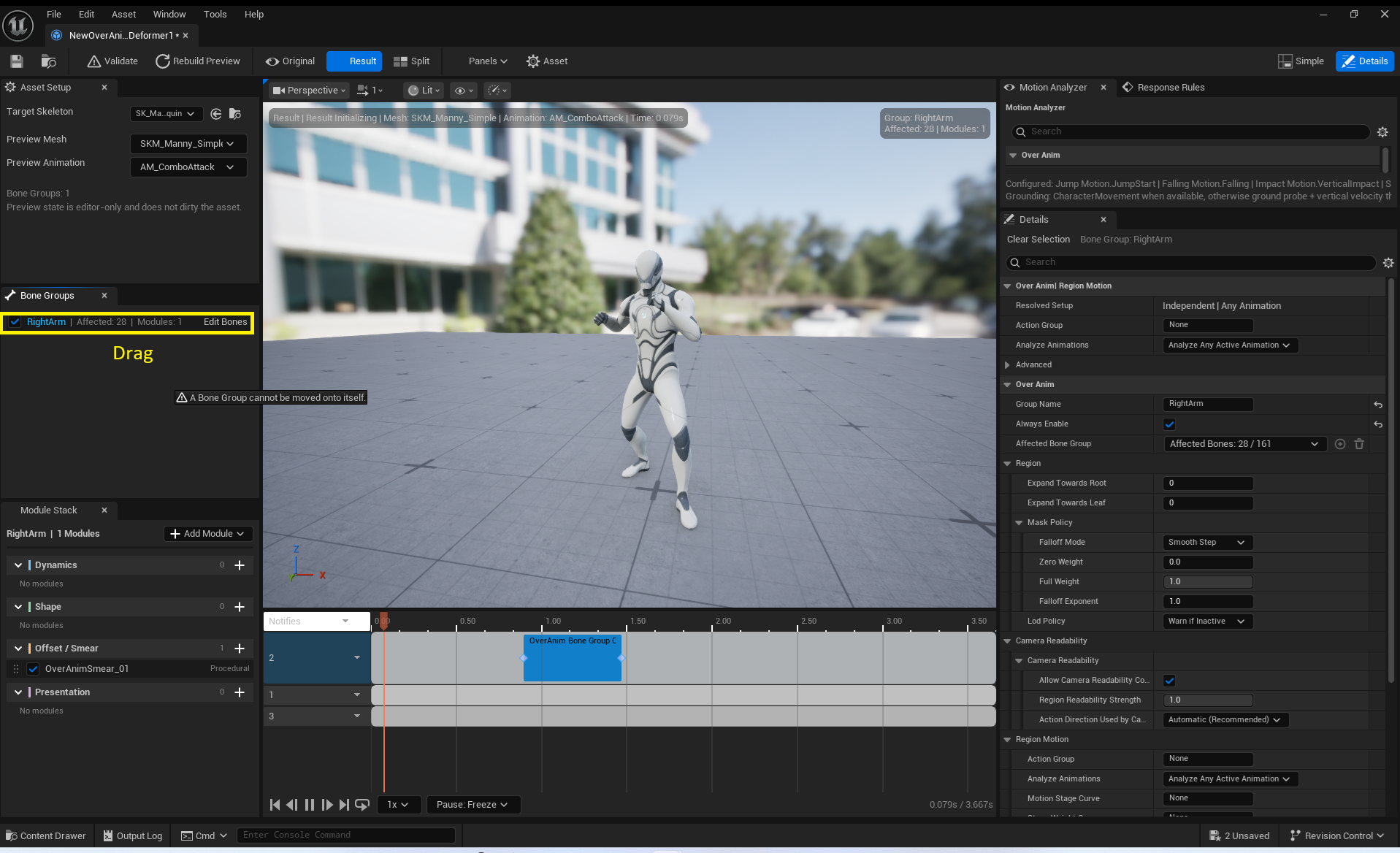
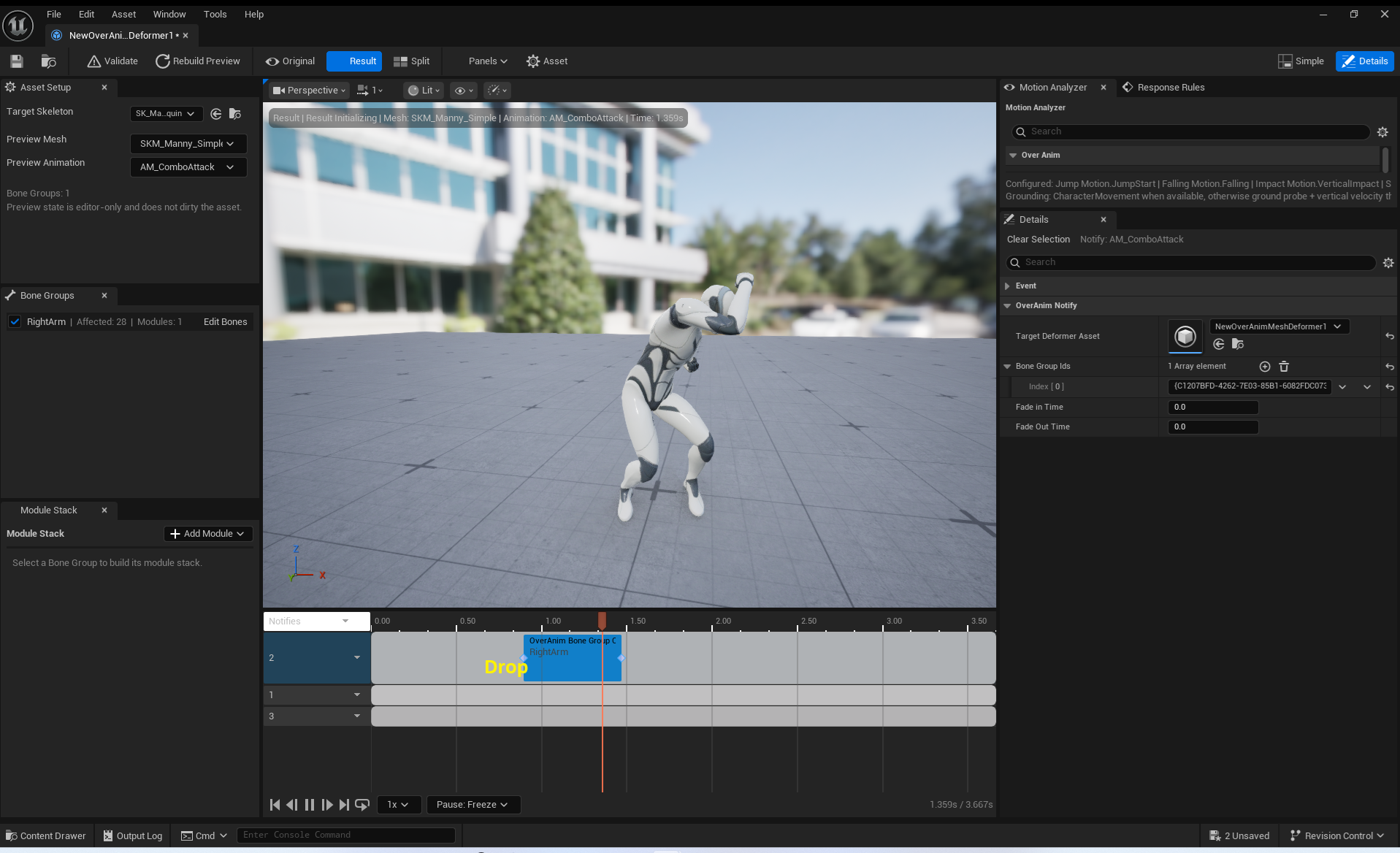
Add Activation Window and Add Signal Event do not accept Bone Group drops. Select either Notify and edit its Activation Channel or Signal settings in Details. If no Preview Animation is assigned, the Preview Timeline and this creation menu are not displayed.
AnimNotify_OverAnimMotionPhaseMarker
Submits an authored automatic stage and stage progress at a single point in time. The default Stage = Action, Stage Progress = 1.0 marks the Action Peak. For continuous buildup across multiple frames, use an Authored Stage Curve instead of multiple Markers.
AnimNotify_OverAnimSignal
Sends a Signal at a single point in time. Signal Timing and acceptance requirements are determined by the target Response Rule and whether the Module supports Signals.
Main settings:
Target Deformer Asset- Signal Protocol or custom
Signal Name Direction SourceOrigin Socket NameSource Region NameMagnitude
If Target Asset is empty, nothing happens. The Signal is delivered only to an OverAnim Manager on the Owner whose Target Asset matches.
AnimNotifyState_OverAnimActivationWindow
Opens an Activation Channel for the duration of the Notify and closes it when the Notify ends. Use it together with a Response Rule's Notify Activation Channel policy.
| Setting | Description |
|---|---|
Target Deformer Asset |
The asset to which the activation window applies. |
Activation Channel |
An optional channel name referenced by the Rule. |
Concurrent Notify States are not merged, allowing multiple windows to overlap intentionally. However, your team should clearly define which window each Rule requires.
AnimNotifyState_OverAnimBoneGroupControl
Activates specific Regions for the duration of the Notify and deactivates them when it ends. It targets the FGuid array in Bone Group Ids, not names.
Fade In TimeandFade Out Timemust be at least 0.- If a Region is renamed or recreated, verify that its ID is preserved.
When sending Signals through a Notify, the Signal Name in Response Rules must match and the Module must support the Signal.
All public properties, Blueprint display names, C++ declarations, and rejection conditions are documented in Animation Notifies API.